
Jump to a feature.
Ease shapes · Smooth, Rough and Tween · Blend and Buffer · Snapshot Motion and Pose · Value Scale and Pin · Time Scale and Retime · Noise, Wave, Pulse and Impact · Timeline Audio · World Space: hold against a moving parent · Mirror and offset cycles · Object Space: keep the cup with the hand · Sculpt · Trajectory and Reverse · Key Reducer and Baker · Offset and Stagger · Tool Modifiers · Teleport to Cursor · Preferences: make it yours · Your settings, remembered per tool · Install, Update and Activate
Ease shapes
Choose an easing shape and use the main slider to blend selected keys from their original curve at 0% to the full effect at 100%.
Smooth, Rough and Tween
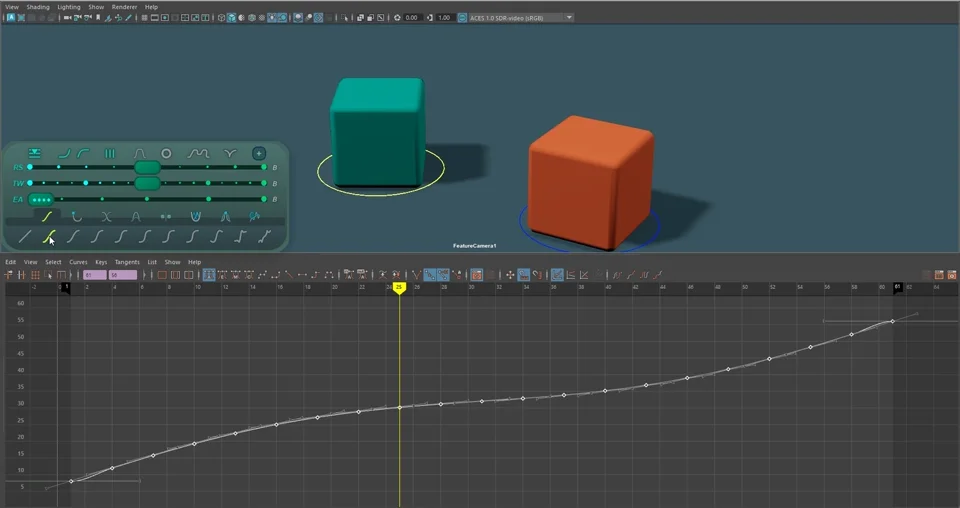
Clean up small variations, add roughness, or blend key values with the dedicated Rough/Smooth and Tween sliders. Tween also supports the current frame when no keys are selected. Buffer and supported modifiers can change how a slider applies the edit.
Blend and Buffer
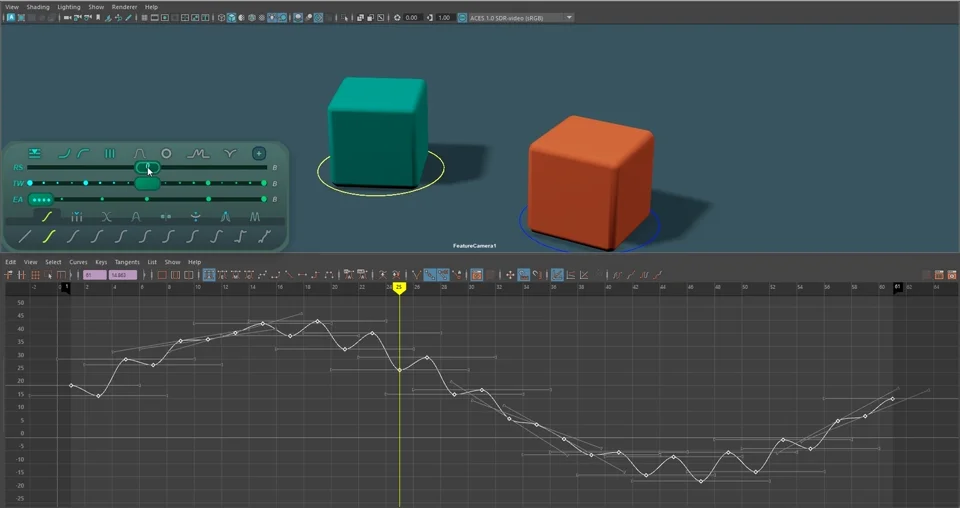
Blend toward a buffered curve, default value, left or right key, midpoint, minimum, maximum, or the current frame. Buffer keeps a reference for an edit; Auto Buffer controls when that reference refreshes. Keep Live History (Alt+A) can retain the captured edit state across compatible adjustments.
Snapshot Motion and Pose
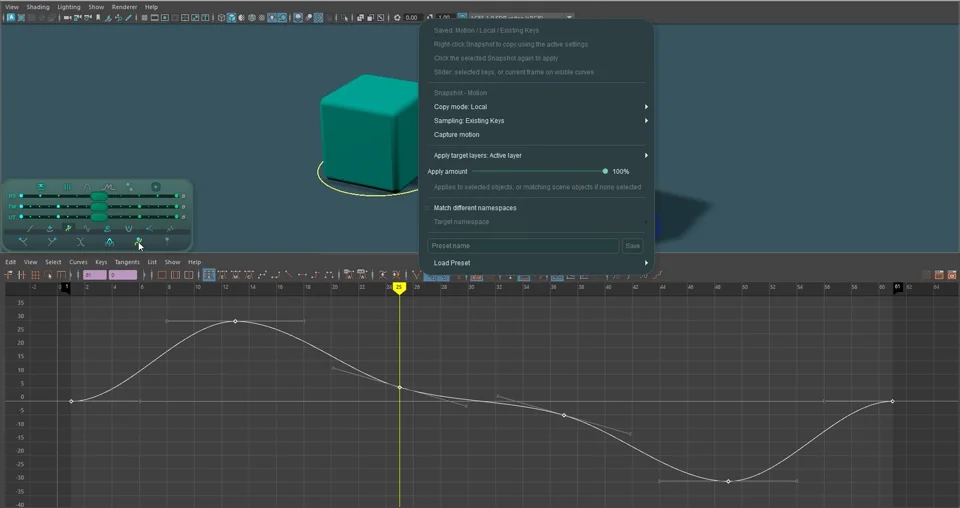
Right-click to capture with the active settings. Blend with the slider, or click the selected tool again to apply. Motion and Pose have separate tools; Pose samples the current frame. Choose Local, Combined Value or World Space, with Existing Keys or Bake Range for motion.
Value Scale and Pin
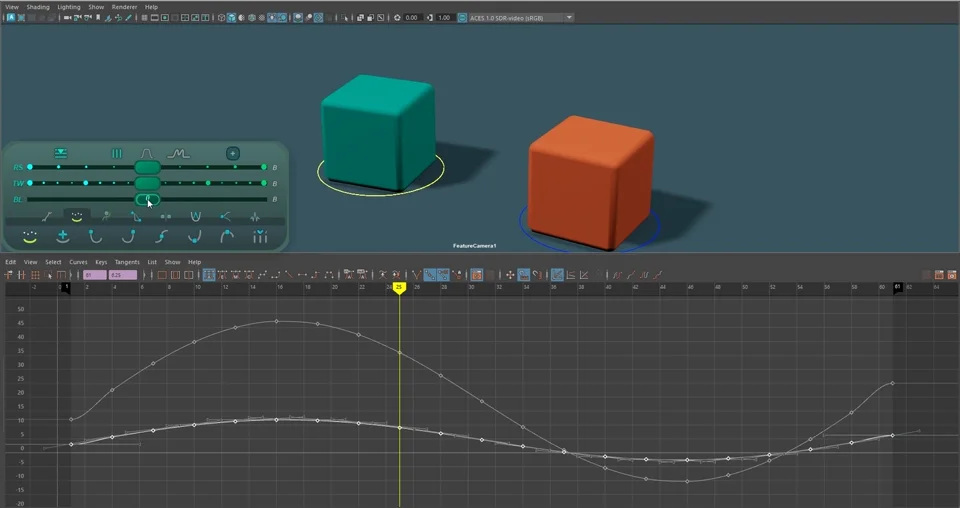
Scale values around the left, right or current-frame pivot. Pro adds pinned-value modes for shaping the range around an anchor. Frame-based methods let you redefine the current pivot. Left and right modes use the ends of the selected range.
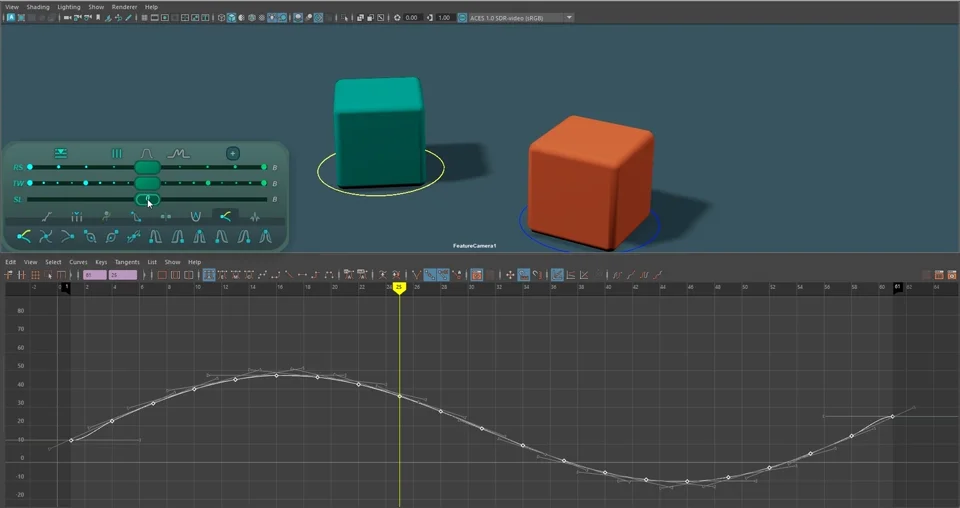
Time Scale and Retime
Stretch or redistribute the sampled motion around left, right or current-frame pivots while keeping existing key times. See the result on curves and in the Maya viewport.
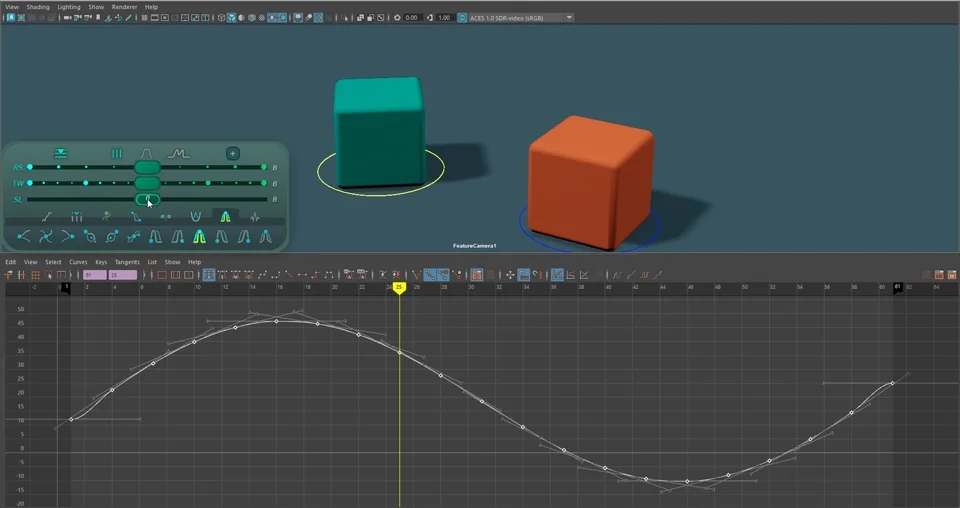
Noise, Wave, Pulse and Impact
Add random variation or a wave, then explore Pro Pulse, Impact and Landscape methods. Control the amount on selected keys. Impact has a right-click reverse option. Each method works from the selected curve region; the amount and available modifiers depend on the method. Pulse settings can be saved as named presets inside the menu.
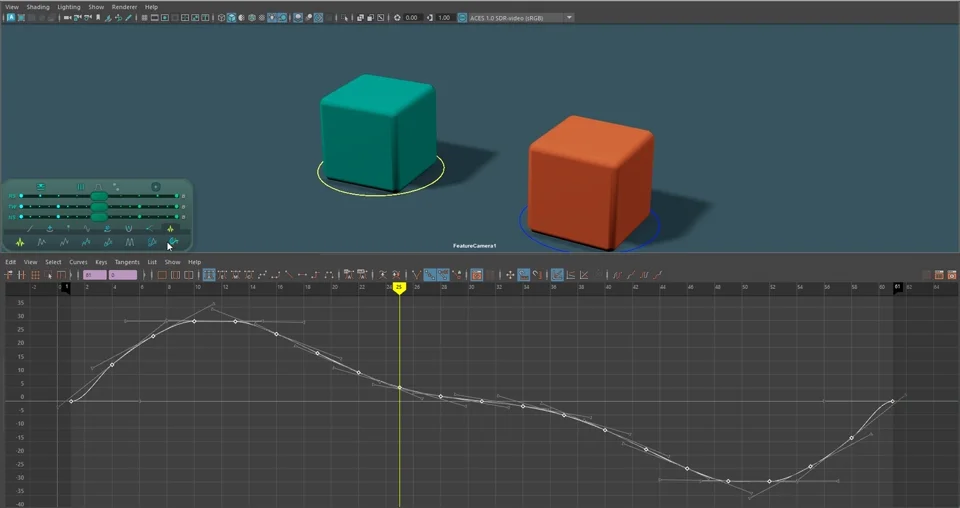
Timeline Audio
Turn timeline audio into keyframe motion. Set the direction and frequency range.
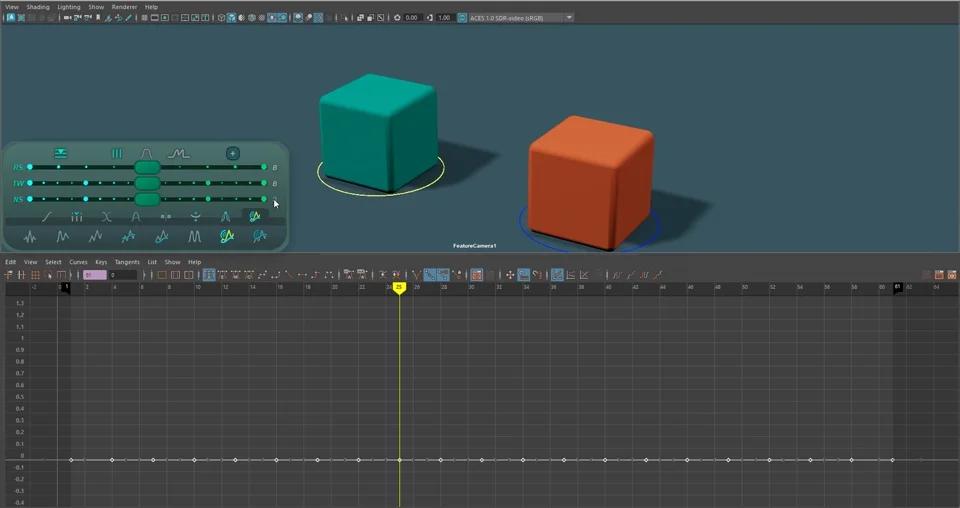
World Space: hold against a moving parent
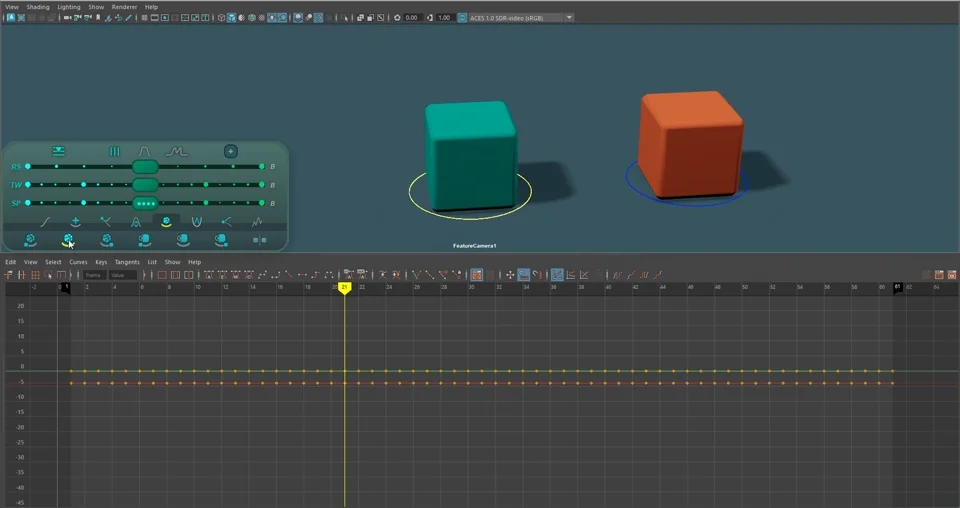
Both cubes inherit motion from their parent. World Space adjusts the teal cube's local Translate and Rotate curves so it holds its reference transform while the parent keeps moving.
Mirror and offset cycles
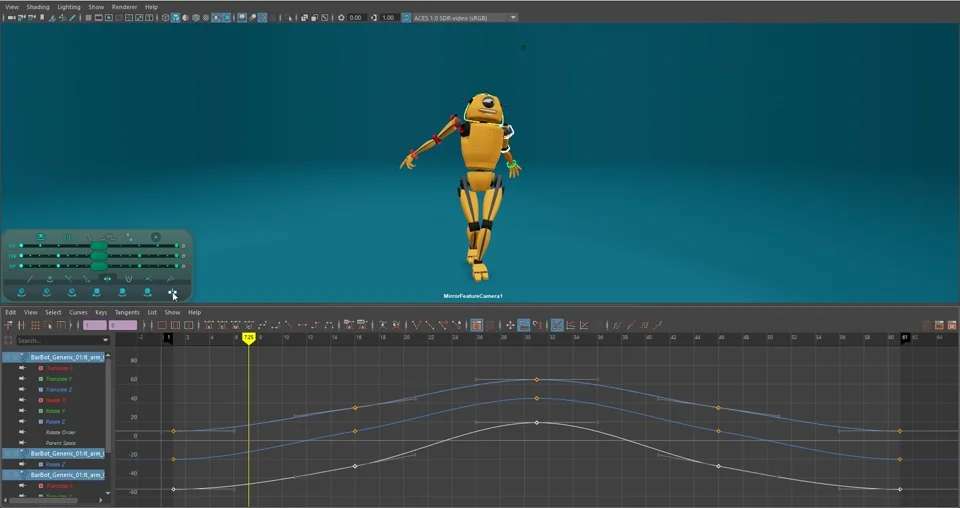
Capture the opposite side with a right-click, then click the selected Mirror tool to apply. Use automatic pairing, Local or World Space, Existing Keys or Bake Range, and layer options. Offset Cycle starts at 50% and allows manual adjustment. Save reusable settings as named presets.
Object Space: keep the cup with the hand
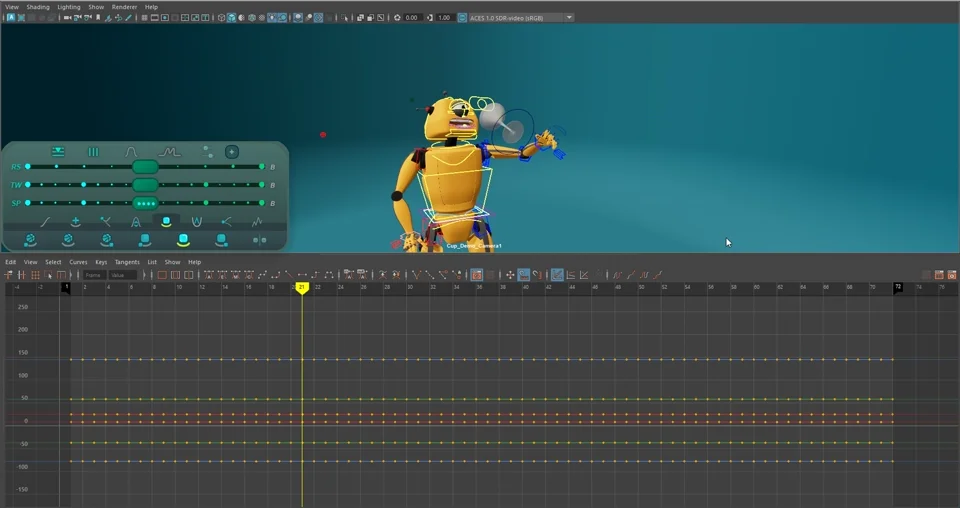
Make an object follow an animated guide while keeping editable animation keys. Align the cup with the hand, then use the hand control as the Object Space guide. Set the guide through the Object Guide menu, or select the control and right-click Left Object Space.
Sculpt
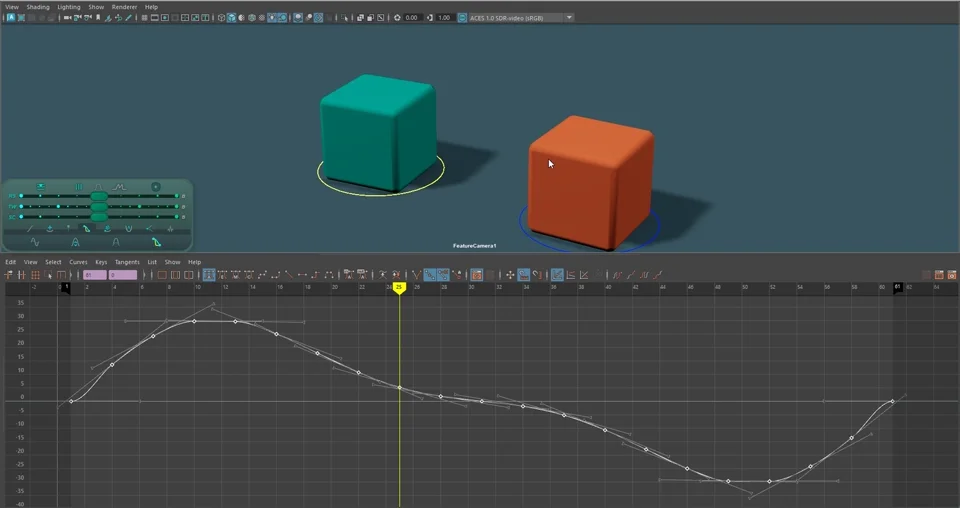
Push and pull away from zero, sculpt a wave, or shape a region with Soft Global and Pinned Max/Min. Pinned Min / Max blends smoothly through the middle and is limited to 100%.
Trajectory and Reverse
Continue a trajectory from the left or right, or blend the selected animation toward its reversed values.
Key Reducer and Baker
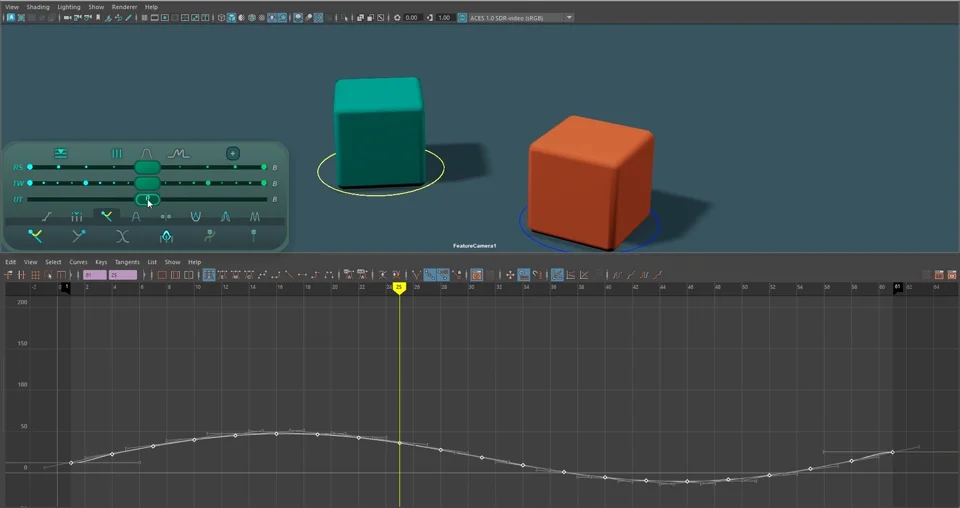
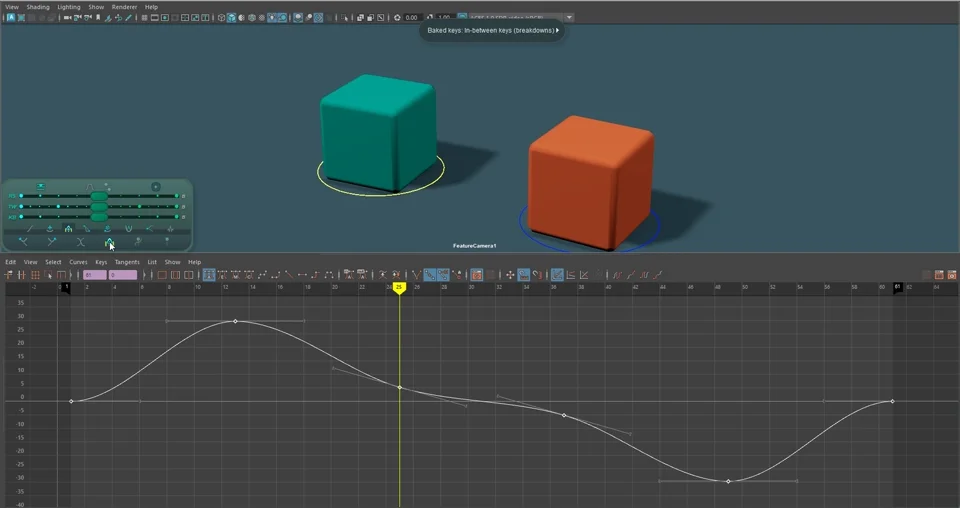
Reduce key density or add keys with the slider. The In-between option marks newly added interior keys as breakdowns while preserving original keys and range boundaries.
Offset and Stagger
Shift the sampled motion within a range, stagger it across selected objects or curves, or offset values. Time-offset modes preserve existing key times. Value Offset can combine Global and Connect; its context menu provides MAX/MIN alignment. The Stagger multiplier supports constant, decreasing and increasing influence.
Tool Modifiers
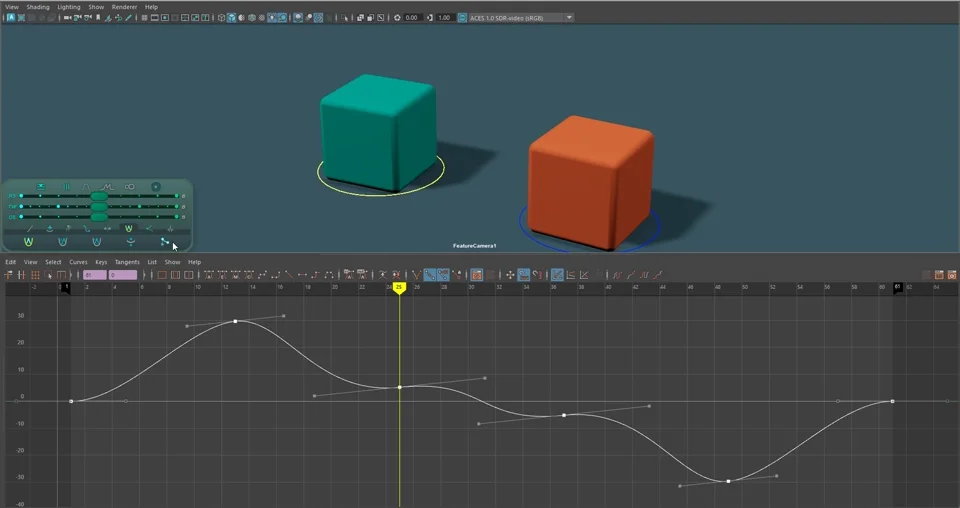
Multi Slope, Preserve Detail, Twin Slope, Global and Stagger change how a method affects your keys.
Teleport to Cursor
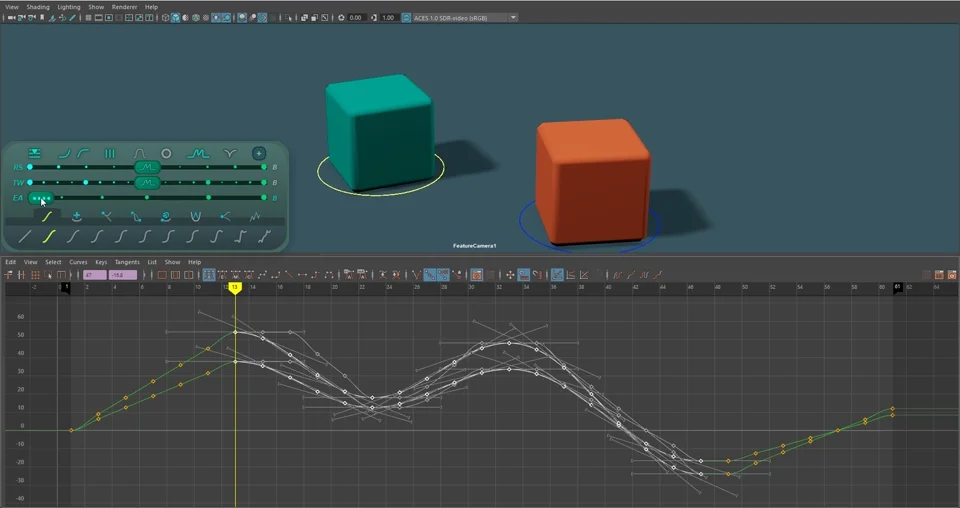
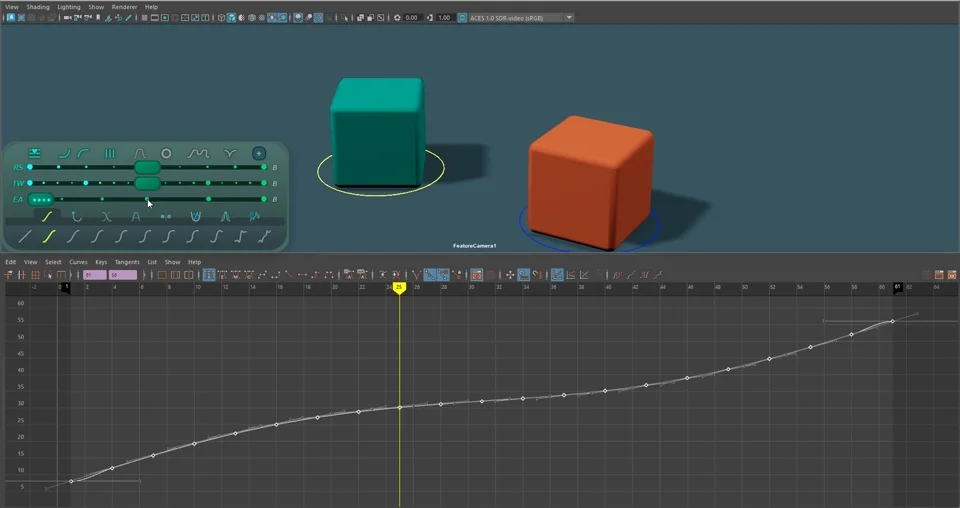
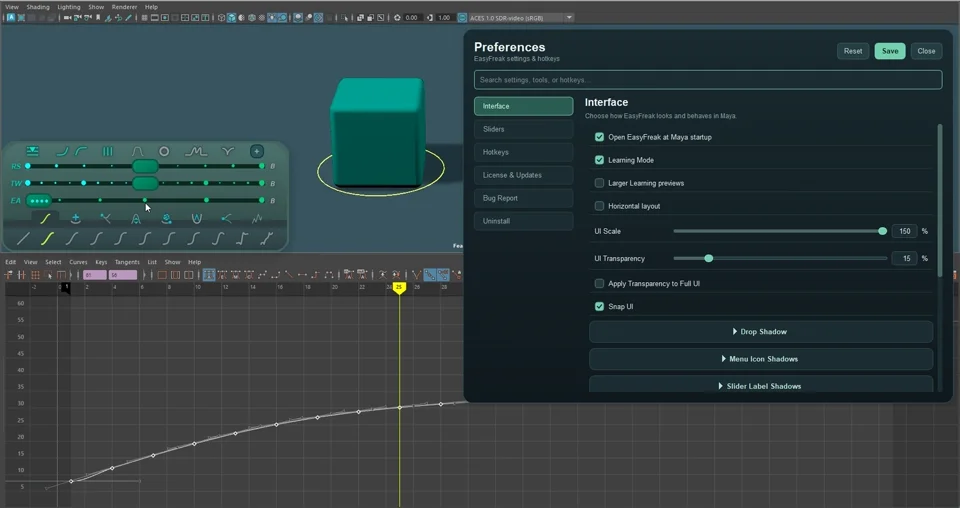
Choose stacked or horizontal sliders, adjust the interface size and transparency, or bring EasyFreak to your pointer with your assigned Teleport hotkey.
Preferences: make it yours
Customize color profiles, panel tones and slider influence, and assign shortcuts to the methods and UI actions you use most.
Your settings, remembered per tool
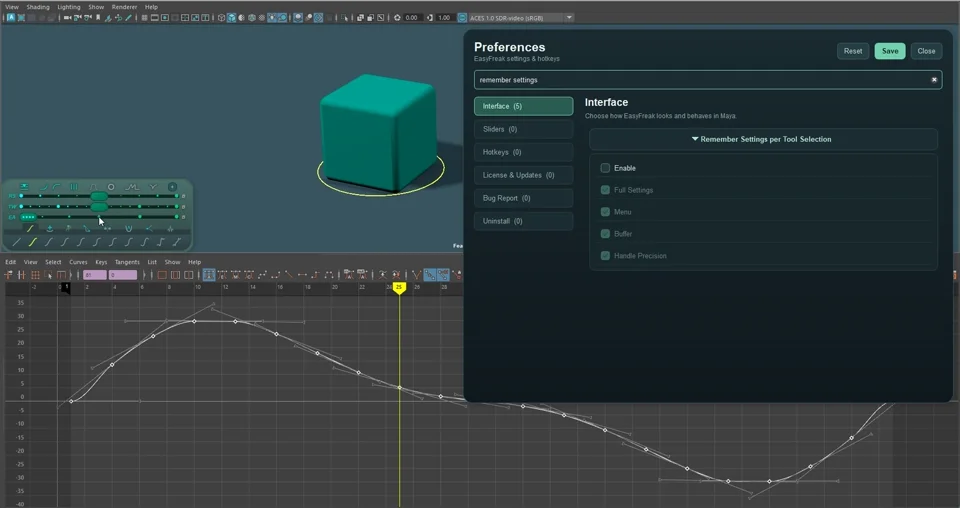
Return to a tool with its top-row modifiers, Buffer switches and handle precision restored. Enable Full Settings, or choose Menu, Buffer and Handle Precision separately. Menu recall covers top-row modifiers such as Multi Slope and Preserve Detail.
Install, Update and Activate
Open the installation guide and video on Support. Explore update checks and optional Pro activation below.