Install and update
Use the release page for available downloads, supported Maya versions and installation notes. Normal updates preserve EasyFreak preferences, fRay_data and licensing state. Back up important work before updating.
 AnimFrayANIMATE WITH EASE
Start with the guides below. For technical help, email support@animfray.com. For payments, cancellations or refund requests, see Billing below. Never send your password, full license key or payment details in a support report.
Use the release page for available downloads, supported Maya versions and installation notes. Normal updates preserve EasyFreak preferences, fRay_data and licensing state. Back up important work before updating.
CORE is free. PRO needs an active trial, paid subscription or authorized sponsorship. One named person uses each seat; each key has one workstation activation. Team members claim their assigned seat before activating.
Open the customer portal linked in your purchase confirmation to manage or cancel your subscription before the next charge. For billing or refund help, email support@polar.sh. Uninstalling or deactivating a key does not cancel billing.
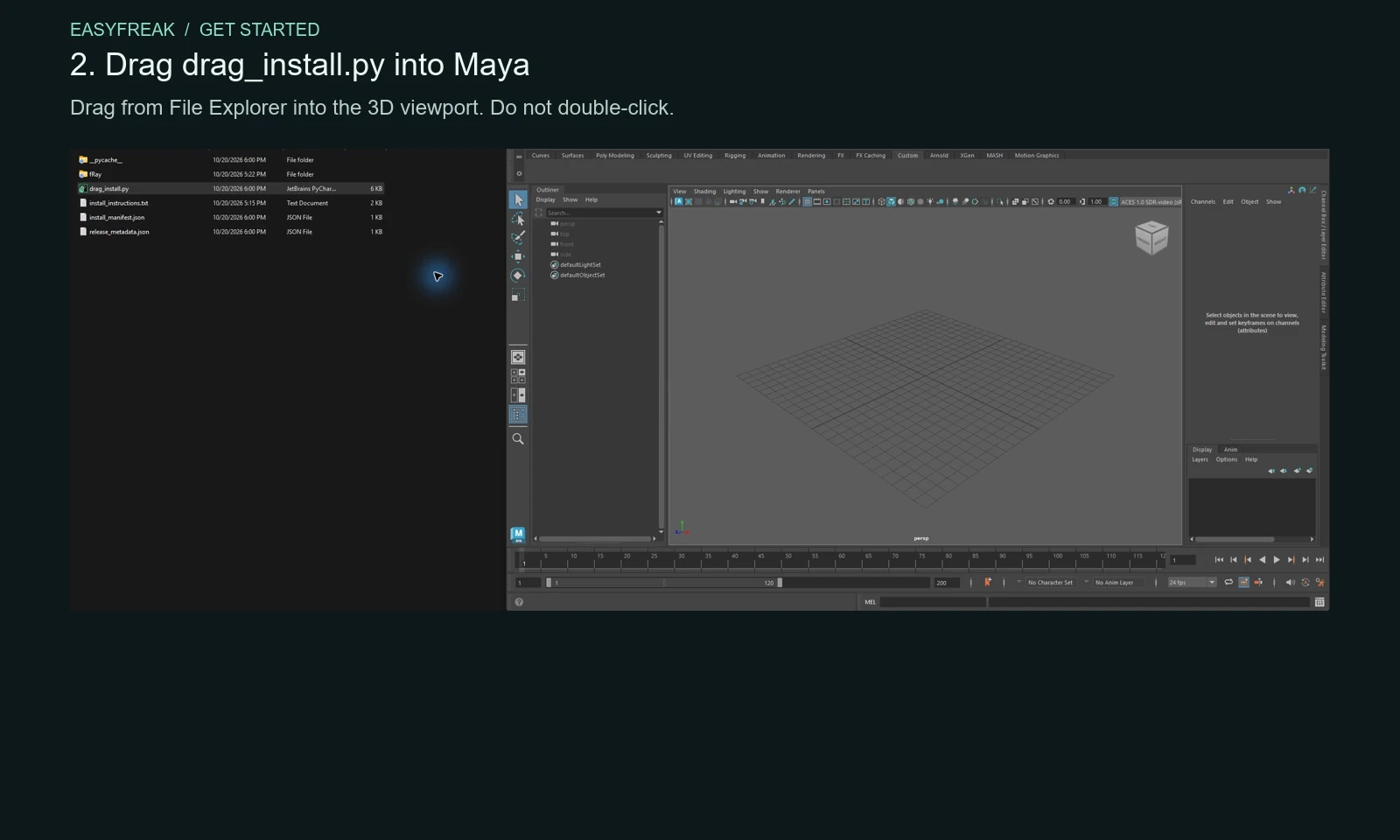
drag_install.py, the installer files and the fRay folder together.drag_install.py from File Explorer (Windows) or Finder (macOS) into the 3D viewport (where your scene is shown). Do not double-click the script or drag it from inside the ZIP.Download from the official release page and follow the instructions included with that package. Builds are available for Windows, macOS and Linux; use the Maya compatibility shown for the actual download. Further testing in Maya on macOS is pending. Save your scene before installing or updating.
If installation fails, include the Maya and EasyFreak versions, the downloaded ZIP filename, the step that failed and the exact error/reference code. Check whether a studio manages your Maya scripts or prevents user startup scripts from running. Do not delete your preferences, fRay_data or licensing files as a first troubleshooting step.
Stable, Beta and Alpha labels describe different release channels. Choose the available channel appropriate to your work and report the exact build. Startup and update behavior depends on your installed build. See the simple update guide below, including updates from older builds.
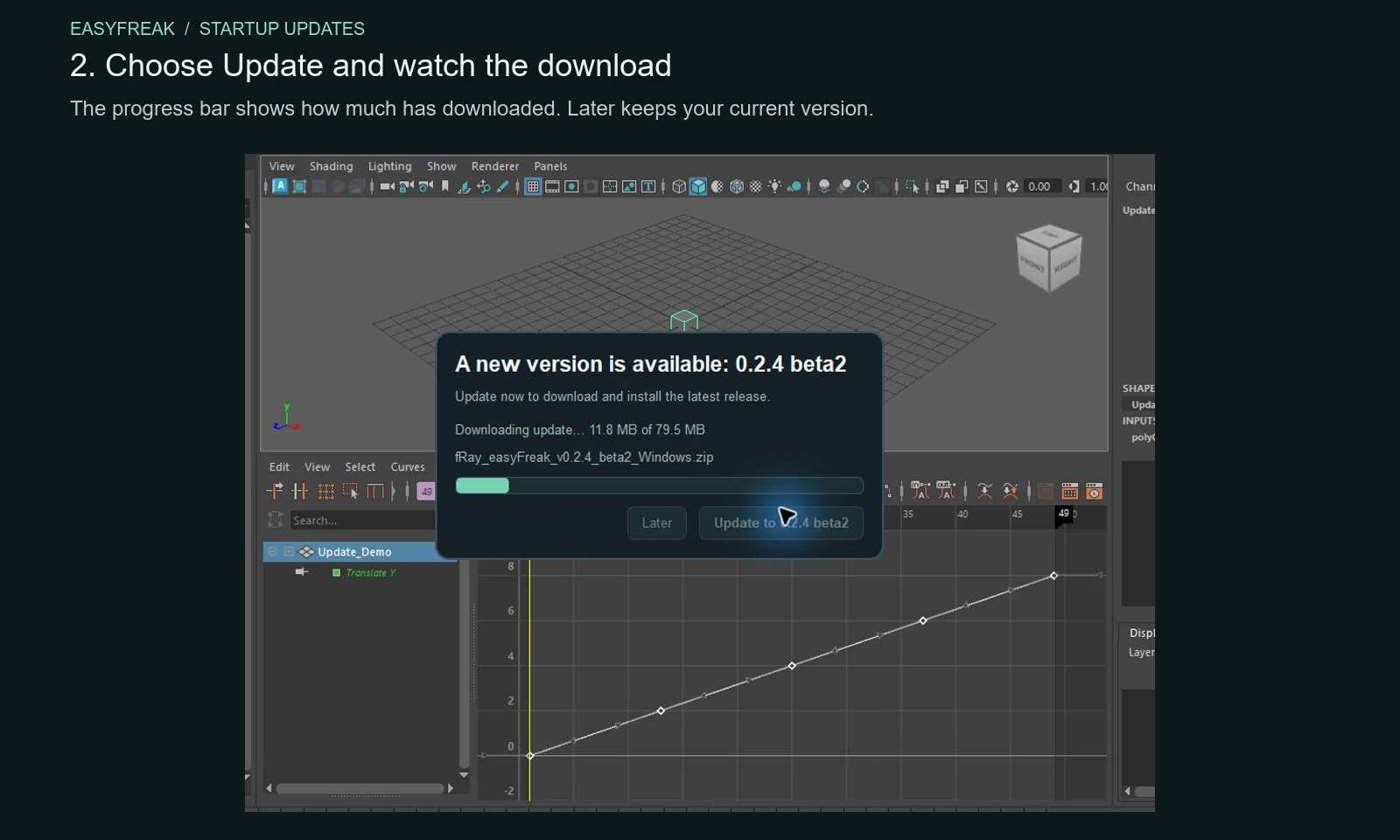
Updating from an older build is easier with 0.2.4 beta4. Choose Update and follow the message in Maya. If a restart is needed, EasyFreak keeps the downloaded update ready and finishes it when you start Maya again.
No startup settings to change and no second installer drag. Normal updates preserve your preferences, fRay_data and licensing state.
If your older build does not offer an update
Download the latest package from the official release page, extract the whole ZIP and drag drag_install.py into Maya once. If a restart is needed, follow the same “Your update is ready” message above.
If your installed version asks you to restart before updating, save your scene, restart Maya and choose Update before opening EasyFreak. Closing only the EasyFreak window is not enough.
The video shows an update that completes without restarting, in Maya 2026 on Windows. It uses local validation builds, so the version numbers are examples. Further testing in Maya on macOS is pending.
If an update fails, keep the error message, Maya version and EasyFreak build for Support. Do not delete your preferences or licensing files.
Individual purchase: get your PRO key from your purchase confirmation or customer account. In EasyFreak, open the license activation controls, paste your key and activate. Keep the key private.
Team purchase: the buyer assigns a seat in their customer account. The invited person must claim that seat to receive their own license benefit/key. The buyer also needs an assigned seat if they use EasyFreak. Seats are named licenses, not floating or concurrent-use licenses.
Changing workstation: deactivate/free the existing workstation activation using EasyFreak or the controls in your customer account, then activate on the new workstation. A team administrator can revoke/reassign a seat without waiting for its previous user. Seat assignment, workstation activation and purchased seat quantity are separate controls.
If activation fails, check your account, seat-claim status, subscription/trial status, internet connection and the error shown. Do not disable certificate checks or send the full key to support. Remote changes may not reach an offline workstation until its next check or signed access-token expiry.
Keep Maya's Graph Editor open and check the selected objects, attributes, visible curves and selected keys. Confirm that the tool and method support the selection and the result you want.
Include the method name, slider value, selection and enabled modifiers in your report—for example Multi Slope, Preserve Detail, Buffer or Stagger where relevant. Check whether the issue happens on one curve or several and whether Undo restores the original result.
Try reproducing it in a small copy or a simple test scene. Do not send client rigs, production scenes, audio or assets unless you have permission. Feature videos show the intended workflows.
Pro for one person is $5/month or $48/year. Team packs cover 5, 10 or 25 people, with monthly or yearly billing. All include professional and paid client work. See current plans and pack totals.
A 14-day trial is available once per eligible customer. Payment details are required; cancel before the trial ends to avoid the first charge. Any private invitation offer is identified at checkout.
Assign team seats in your customer account. Each person claims their invitation and receives their own activation key. Reassigning a seat does not change the pack price. Manage subscriptions and cancellation in the customer portal linked in your purchase email. This portal is provided by Polar.
For billing or refund help, contact billing support. Refund requests are assessed under applicable law and the checkout terms. For EasyFreak or activation help, contact AnimFray.
Include your Maya version, EasyFreak version/build, operating system and version, error/reference code, exact steps, expected result and actual result. A cropped screenshot or a minimal example can help. Remove private paths, client names, license keys and confidential scene details.
If your build has the in-app report panel, review the report before sending and add contact details only if you want a reply. A successful send means the server accepted the message for delivery; it does not guarantee arrival in the inbox. If delivery is uncertain, check the status before resending and use the offered email fallback deliberately.
You can always email support@animfray.com directly. Do not send passwords, full license keys, payment-card details or proprietary client material. Support response times are not guaranteed.
Review the software license agreement, privacy notice, and purchase, subscription and refund terms before purchasing or installing. The checkout identifies the applicable offer and recurring-payment authorization.
Technical and workflow questions: support@animfray.com. Billing, cancellation and refund questions: support@polar.sh. Include the details above so we can understand the issue.